AI
Connectors
Connectors let the Turbofy assistant work with the other tools you use, like Notion, HubSpot, Supabase, Intercom and more. Sign in once, and the assistant can look things up, create records and take actions there as part of a chat.
What a connector does
Every connector links the assistant to an app’s MCP server, a standard way for an app to offer its features to AI assistants. Once you connect it, the assistant gains that app’s tools: searching Notion pages, reading HubSpot deals, querying a Supabase database, and whatever else the app offers.
That lets one chat span several tools. The assistant can read from an app you connected, combine it with your Turbofy data, and build something from both.
Look up the HubSpot deals that close this month and
create a Deals table in this workspace with the deal name,
amount, stage and close date. Then add a page that lists
them sorted by close date.
Connectors extend the Turbofy assistant, the chat inside your workspace. To use Turbofy from an assistant outside Turbofy, such as Claude or Codex, see Turbofy MCP instead.
Personal and private
A connector signs in with your own account in the other app. That makes it personal:
- Only you can use it. It works only in your own chats in the assistant.
- Other members of the workspace cannot see your connections, use your sign-in, or read what the assistant fetched with it.
- The assistant can only do what your account in that app is allowed to do. If you cannot open a Notion page yourself, the assistant cannot either.
- Connections belong to a workspace. If you work in several workspaces, connect the app in each one where you want the assistant to use it.
Turbofy never sees or stores your password for the other app. You sign in on the app’s own page, and it gives Turbofy an access token, which is stored encrypted. Disconnecting deletes it.
Connect an app
- 1In your workspace sidebar, open
AI→Connectors. - 2Find the app under
Available. Use the search field at the top right to filter by name. - 3Click
Connect. A sign-in page from that app opens. Apps that need no account, such as DeepWiki, connect right away and skip the next step. - 4Sign in and approve the access the app asks for. Some apps let you choose which workspace, team or pages to share. The assistant can only use what you choose there.
- 5You return to Turbofy, and the app moves to
Enabled. Its card shows the connection status and how many tools the app offers.
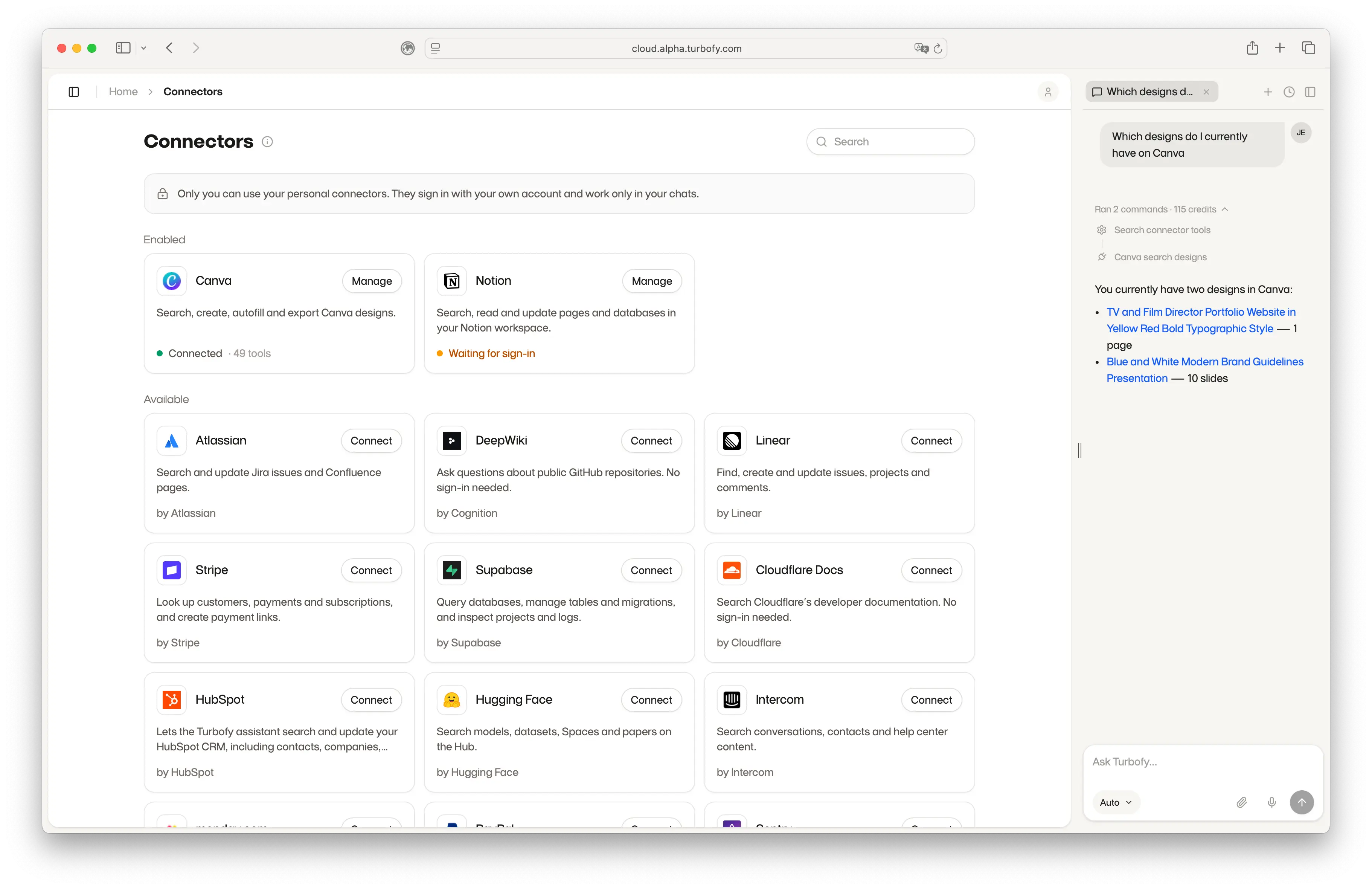
Connect only the apps you need. You can connect more at any time, and the assistant picks up new connections in your next message.
Use connectors in a chat
There is nothing to switch on in the chat. Ask for what you want in plain language, and name the app if it helps. The assistant knows which apps you connected and picks the right tools itself.
Find the Notion page "Q3 launch plan" and turn its task list
into records in our Tasks table, one per task, with the owner
and due date.Check the open Intercom conversations tagged "billing" and
summarize the three most common problems customers report.Look at the tables in my Supabase project and create matching
tables in this workspace, then copy over the first 50 customers.Apps can offer dozens of tools, so the assistant does not load them all up front. It first searches your connected apps for the tools a task needs, enables those, and then calls them. Tools it enabled stay available for the rest of the conversation.
You can follow along in the chat’s activity list. Calls to a connected app show a plug icon and the app’s name with the tool, such as HubSpot search crm objects.
Tools can change data in the other app, too: creating a page, updating a deal, running SQL. The assistant acts with your account, so be specific about what it may change, and review the result like any change made in your name.
Manage a connection
Each enabled card shows a status:
Connected: ready to use in your chats.Waiting for sign-in: you started connecting but have not finished signing in yet.Needs sign-in: the app ended the session, for example after a password change or when access was revoked. The assistant cannot use it until you sign in again.
Open Manage on the card for these actions:
Sign in againorReconnect: repeats the sign-in, for example to switch to another account or to grant access the app asked for later.Disconnect: removes the connection and deletes the stored token. The app goes back toAvailable. To revoke access on the app’s side as well, remove Turbofy in that app’s settings for connected apps.
Which apps are available
Turbofy keeps a curated catalog of connectors and adds more over time. The catalog is the same for every workspace; what you connect from it stays personal.
Missing an app you need? Let us know. Some vendors only allow approved or self-hosted integrations on their MCP servers, so availability depends on the app.
Troubleshooting
Sign-in was cancelled.means you closed or declined the app’s sign-in page. ClickConnectagain.This sign-in link expired.means the sign-in took too long. Start again fromAI→Connectors.- If the card says
Needs sign-in, openManage→Sign in again. - The assistant says it cannot find something? Check that the account on the card has access to it in the app, and that you shared it during sign-in if the app asked you to choose.
- The assistant does not use the app? Name the app in your request, for example “in Notion” or “from HubSpot”.