Data & content
Assets
Assets is your workspace's file library. Upload images, code and documents by drag-and-drop, keep them tidy in folders, act on them one by one or in bulk, preview them full-screen, and reference their public URLs anywhere in your apps.
Uploading files
Drag one or more files onto the drop zone at the top of the Assets screen, or click it to browse — you can drop several at once. Uploads land in the folder you currently have open, are grouped into Images, Code and Other, and each one becomes a file-document record with a stable URL.
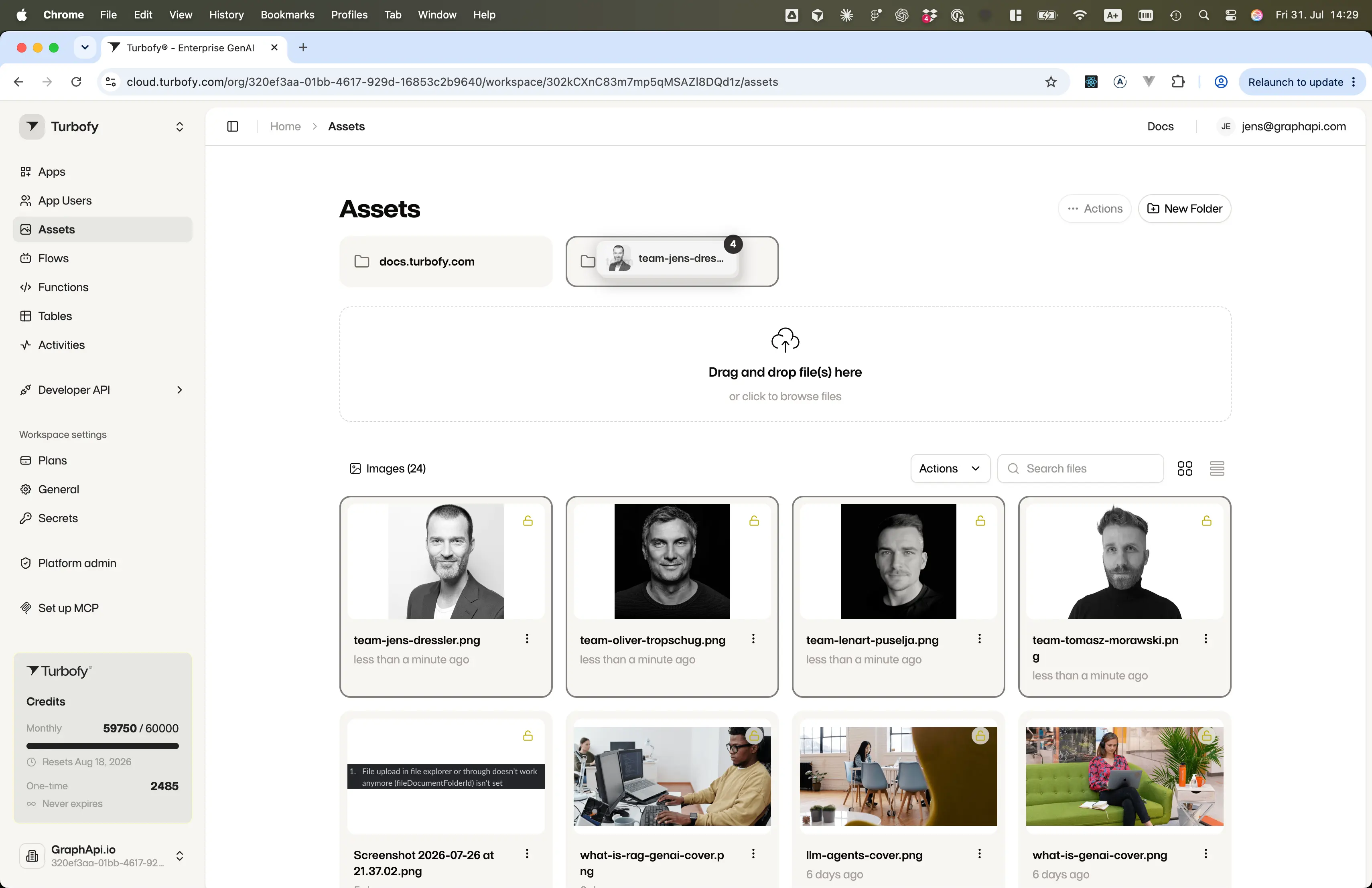
- Switch between grid and list view with the toggle next to the search box.
- Search files by name to find them quickly.
- Every file carries a visibility flag — public or private — shown by the lock badge on its tile.
Newly uploaded files are private by default — reachable only inside Turbofy. When you need a public URL (for example to embed an image in a block), make the file public first.
Organizing with folders
Folders keep a growing library manageable. Use New Folder to add one at the current level, then click a folder tile to open it. The breadcrumb above the title shows where you are and takes you back up again, and the open folder is part of the address — so a link points straight at it.
- Nest folders as deep as your project needs.
- Uploads always go into the folder that is currently open.
- Drag a file — or a whole selection — onto a folder tile to move it in.
Moving assets
For anything further than the folder next to it, select the files and pick Move from the Actions menu. The dialog shows your folder tree: choose the destination and confirm with Move here.
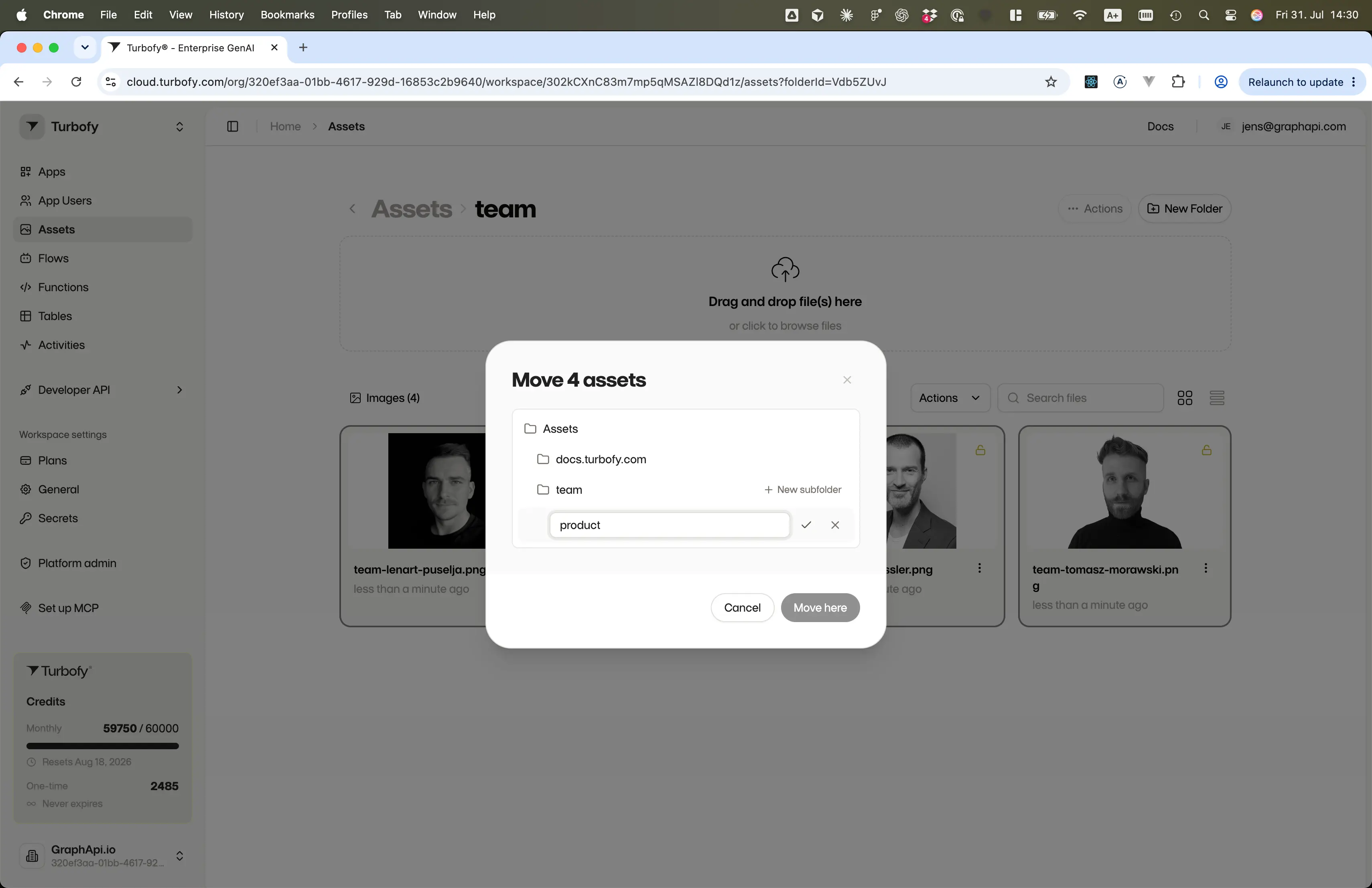
New subfolder, then move the files into it.You don't have to prepare the destination up front — New subfolder inside the move dialog creates one where you need it, without leaving the flow.
Selecting assets & bulk actions
Select several files, then apply one action to all of them at once:
- Cmd / Ctrl + Click — add or remove an individual file from the selection.
- Shift + Click — select a continuous range of files.
With files selected, the Actions menu operates in bulk and shows the number of files each action will affect:
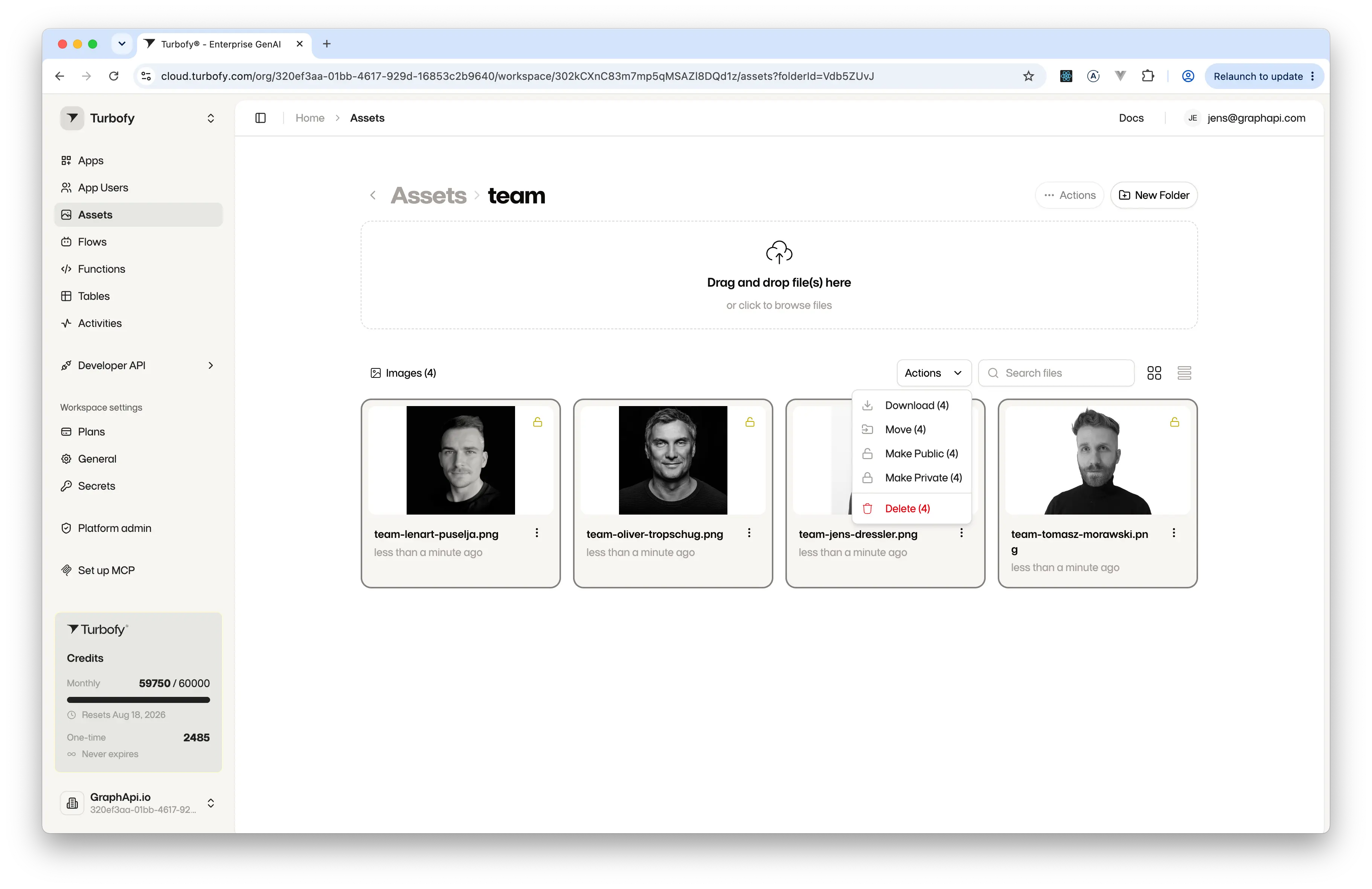
- Download (n) — download every selected file.
- Move (n) — move the whole selection into another folder.
- Make Public (n) — publish all selected files so their URLs resolve externally.
- Make Private (n) — restrict all selected files to inside Turbofy.
- Delete (n) — remove all selected files.
Single-file actions
Open the menu on a file's tile to act on that one file:
- View — open the file in a preview.
- Download — save the file to your device.
- Copy link — copy the file's URL to the clipboard (the link resolves externally only while the file is public).
- Make Private / Make Public — toggle the file's visibility; the lock badge updates to match.
- Delete — permanently remove the file document.
Previewing in the lightbox
Click an image to open it full-screen. The lightbox header names the file, its media type and its position in the current folder — 3 / 4, for example — and the arrows on either side step through the rest without closing the viewer.
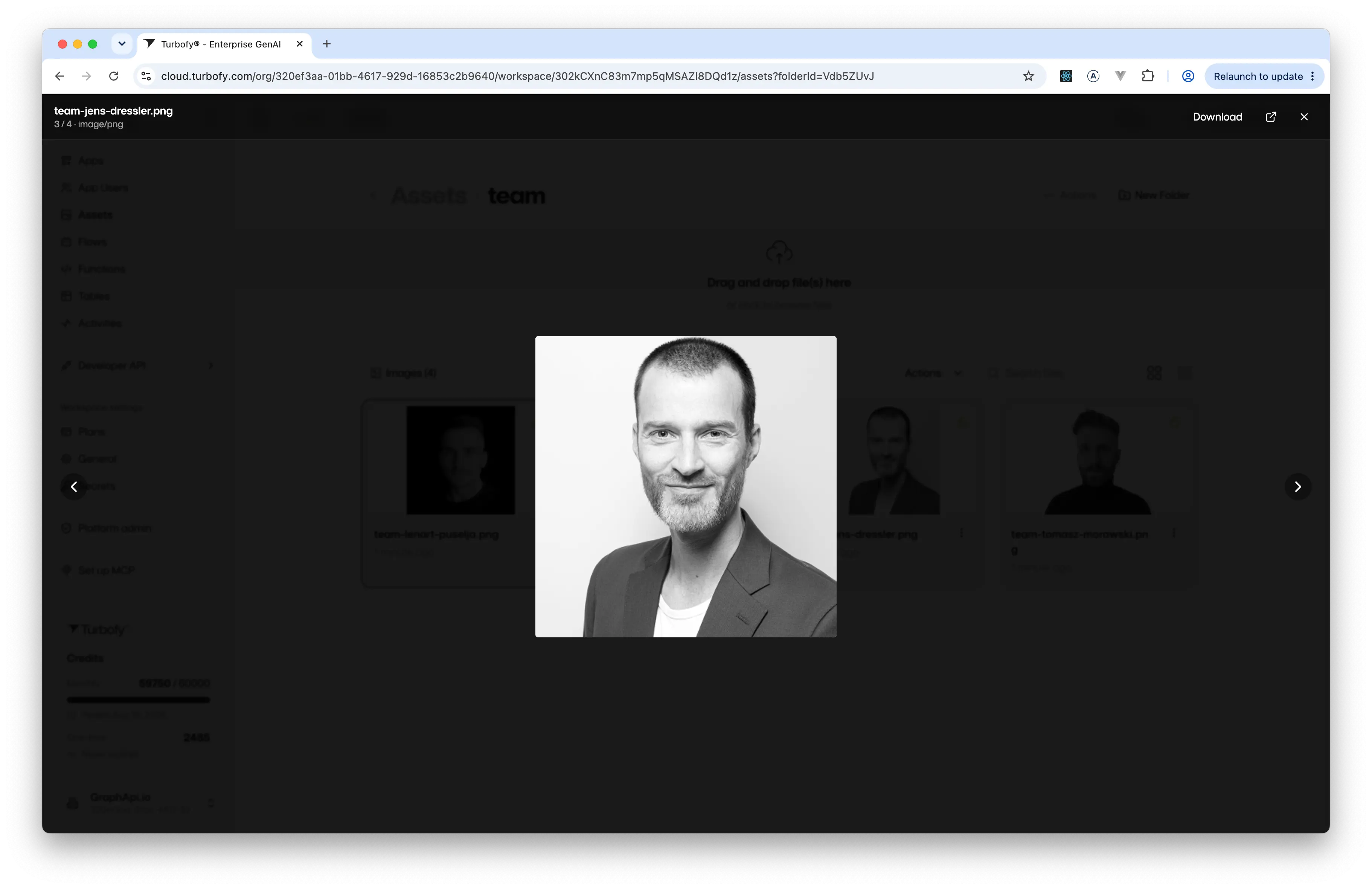
- Download — save the file you are looking at.
- Open in a new tab — load the raw file at its own URL.
- Close — return to the asset grid.
Using assets in apps
Reference an uploaded asset by its absolute public URL inside a building block — for hero images, logos, avatars and more. The asset must be public for the URL to load outside Turbofy, and because the URL is hosted by Turbofy it stays stable across deploys.
Uploading via the MCP returns the same file-document record, so automated pipelines and the dashboard share one asset library.